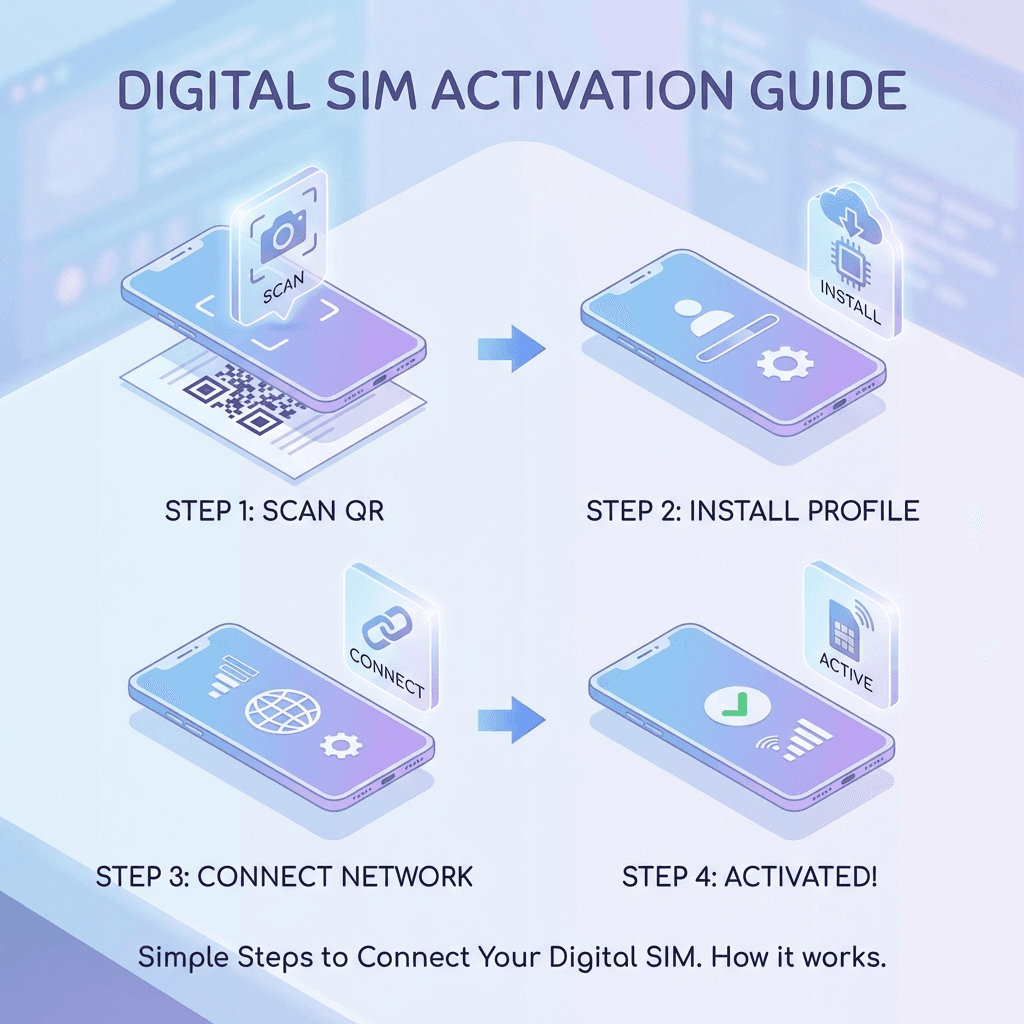
How it works?

A quick overview of how to buy, install, and use your travel eSIM.

1. You can install your e-Sim in two different ways (QR code and manual entry)

  • Option A — QR Code (recommended): We email you a QR code after you purchase a plan. Scan it on your iPhone to install.
  • Option B — Manual Entry: If you can’t scan the code, you can enter the activation details manually (we’ll include these in the email too).

2. Before you begin

  • Connect to a stable Wi-Fi (recommended for a smooth install).
  • Make sure the device's "Airplane Mode" is turned OFF

3. Step 1 — Create an account

  • Go to the Quantroam website
  • Create an account.
  • Enter your email and set a password.
  • Verify your email if prompted.

4. Step 2 — Purchase the data package you wish to use

  • Choose your destination (or region).
  • Select a data package.
  • Complete checkout.
  • Check your inbox for your e-Sim QR code and activation details.

5. Step 3 — Turn off data roaming for your regular SIM

  • This helps prevent unexpected roaming charges on your main SIM.
  • Open Settings → Cellular.
  • Tap your Primary (regular) SIM.
  • Turn off data roaming.

6. Step 4 — Configure your Quantroam e-Sim settings

  • Install the e-Sim (QR code):
    • Settings → Cellular → Add e-Sim
    • Choose Use QR Code
    • Scan the QR code from your Quantroam email
    • Follow the prompts to finish installing
  • Install the e-Sim (manual entry):
    • Settings → Cellular → Add e-Sim
    • Choose Enter Details Manually
    • Enter the activation details from your Quantroam email
    • Follow the prompts to finish installing
  • Label it clearly (recommended): Name it “Quantroam” so you can find it fast later

7. Step 5 — Select your Quantroam e-Sim to start using it for data

  • Open Settings → Cellular.
  • Select Quantroam.
  • Make sure Data Roaming is On for the Quantroam e-Sim (this is required for travel e-Sims to connect in most destinations).

8. Step 6 — Turn off iCloud Cellular Backup

  • This prevents your phone from using travel data for background backups.
  • Open Settings → tap your name (Apple ID) → iCloud.
  • Tap iCloud Backup.
  • Turn Back Up Over Cellular → Off.

1. You can install your e-Sim in two different ways (QR code and manual entry)

  • Option A — QR Code (recommended): After you purchase a plan, we’ll email you a QR code. Scanning it installs the e-Sim instantly.
  • Option B — Manual Entry: If you can’t scan the QR code, you can enter the activation details manually using the information provided in the email.

2. Before you begin

  • Connect to a stable Wi-Fi (recommended for a smooth install).
  • Make sure the device's "Airplane Mode" is turned OFF

3. Step 1 — Create an account

  • Visit the Quantroam website or app
  • Select Create account.
  • Enter your email address and set a password.
  • Verify your email if prompted.

4. Step 2 — Purchase the data package you wish to use

  • Choose your destination or region.
  • Select the data package that suits your trip.
  • Complete checkout.
  • You’ll receive an email containing your e-Sim QR code and setup details.

5. Step 3 — Turn off data roaming for your regular SIM

  • This helps avoid accidental roaming charges on your primary SIM.
  • Open Settings → Mobile / Cellular.
  • Tap your Primary SIM.
  • Toggle Data Roaming → Off

6. Step 4 — Configure your Quantroam e-Sim settings

  • Install using a QR code:
    • Go to Settings → Mobile / Cellular → Add e-Sim.
    • Tap Use QR Code.
    • Scan the QR code from your Quantroam email.
    • Follow the on-screen prompts to complete installation.
  • Install using manual entry:
    • Go to Settings → Mobile / Cellular → Add e-Sim.
    • Tap Enter Details Manually.
    • Enter the activation information provided by Quantroam.
    • Follow the prompts to finish setup.
  • Tip: Label the e-Sim as “Quantroam” for easy identification

7. Step 5 — Select your Quantroam e-Sim to start using it for data

  • Open Settings → Mobile / Cellular.
  • Tap Cellular Data.
  • Select Quantroam.
  • Make sure Data Roaming is On for the Quantroam e-Sim.

8. Step 6 — Turn off iCloud Cellular Backup

  • This prevents iCloud backups from using your travel data.
  • Open Settings → tap your Apple ID.
  • Select iCloud → iCloud Backup.
  • Turn Back Up Over Cellular → Off.

Note: Menu names may vary slightly depending on your device manufacturer (Samsung, Google Pixel, etc.), but the overall process is the same.

1. You can install your e-Sim in two different ways (QR code and manual entry)

  • Option A — QR Code (recommended): After purchasing a plan, you’ll receive an email with a QR code. Scanning it installs the e-Sim instantly.
  • Option B — Manual Entry: If scanning isn’t possible, you can enter the activation details manually using the information provided in the email.

2. Before you begin

  • Connect to a stable Wi-Fi (recommended for a smooth install).
  • Make sure the device's "Airplane Mode" is turned OFF

3. Step 1 — Create an account

  • Visit the Quantroam website
  • Tap Create account.
  • Enter your email address and set a password.
  • Verify your email if prompted.

4. Step 2 — Purchase the data package you wish to use

  • Choose your destination or region.
  • Select the data package that fits your travel needs.
  • Complete checkout.
  • Check your email inbox for your e-Sim QR code and setup details.

5. Step 3 — Turn off data roaming for your regular SIM

  • This helps prevent accidental roaming charges on your primary SIM.
  • Open Settings → Network & Internet (or Connections).
  • Tap SIMs or Mobile Network.
  • Select your Primary SIM.
  • Toggle Data Roaming → Off.

6. Step 4 — Configure your Quantroam e-Sim settings

  • Install using a QR code:
    • Go to Settings → Network & Internet → SIMs.
    • Tap Add e-Sim or Download a SIM instead.
    • Choose Scan QR code.
    • Scan the QR code from your Quantroam email.
    • Follow the on-screen instructions to complete the installation.
  • Install using manual entry:
    • Go to Settings → Network & Internet → SIMs.
    • Tap Add e-Sim.
    • Choose Enter activation code manually.
    • Enter the details provided in your Quantroam email.
    • Follow the prompts to finish setup.
  • Tip: Rename the e-Sim to “Quantroam” for easy identification.

7. Step 5 — Select your Quantroam e-Sim to start using it for data

  • Open Settings → Network & Internet → SIMs.
  • Tap Mobile Data or Preferred SIM for data.
  • Select Quantroam.
  • Make sure Data Roaming is On for the Quantroam e-Sim (this is required for most travel e-Sims to connect abroad).

8. Step 6 — Turn off background data backups (recommended)

  • To avoid unnecessary data usage while travelling:
    • Open Settings → Accounts & Backup or System.
    • Disable Back up over mobile data (Google or device backup).
    • Keep backups restricted to Wi-Fi only.